
A Simple Small Monitor for YouTube Creators
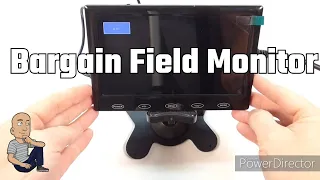
Adding a small second screen to your workspace can change how you work. It is perfect for monitoring chat, checking video edits, or viewing reference material. This blog post walks through the unboxing and setup of a basic 7-inch LCD touch screen monitor bought online. We will look at what comes in the box, the monitor’s physical features, and how to get it running.
What’s Inside the Box
When you first open the box, you will find several items packed in protective foam. The package includes everything you need to start using the monitor right away.
Here is a complete list of all the included accessories:
- The Monitor: The main unit is a 7-inch screen with a sleek black gloss finish.
- Power Supply: A cable and adapter to provide power to the monitor.
- Mountable Stand: A small stand with a sticky adhesive pad on the back. This lets you mount the monitor on a surface.
- VGA Adapter Cable: This cable is called a T-Sync adapter. It allows you to connect the monitor to a computer’s VGA output.
- AV Splitter Cable: This cable has composite video and stereo audio inputs (left and right channels).
- Remote Control: A small remote for operating the monitor from a distance.
- User Manual: Instructions that explain how to use the remote control and other basic functions.
Having all these parts means the monitor is ready for different uses. You can connect it to various devices.
Examining the Monitor’s Physical Features
The monitor itself has a simple and modern design. Its build makes it useful for many setups.
Front and Build The front is all screen with a thin border. The overall finish is a stylish black gloss. This gives it a clean look that fits most desks or work areas.
Back Panel Ports and Connections The back of the monitor is where all the connections are located. Knowing these ports helps you plan your setup.
Here is a breakdown of the connections on the rear:
| Port / Feature | What It’s For |
|---|---|
| Stereo Speakers | Built-in speakers for sound output. |
| Cooling Vents | Helps keep the monitor from getting too hot. |
| Power Input | Where you plug in the included power supply. |
| AV Input | For connecting the included AV splitter cable. |
| HDMI Input | For a high-quality digital video and audio connection. |
| DVI-D Connector | For connecting to a PC using the included adapter cable. |
Mounting Options Underneath the monitor, you will find a mounting bracket with a standard thread. This is a very useful feature. It means you can attach the monitor to a common photography tripod or an arm mount. This gives you great flexibility in positioning the screen exactly where you need it.
Getting Started with Setup
Setting up this small monitor is a straightforward process. You can be up and running in just a few minutes.
Step 1: Position the Monitor First, decide where you want the screen. You have two main choices:
- Use the included stand. Peel off the backing from the sticky pad and press it onto a clean, flat surface. Then attach the monitor.
- Use the mounting thread. Screw it onto a tripod or mounting arm for more adjustable placement.
Step 2: Connect to Power Take the provided power supply cable. Plug the adapter into a wall outlet. Then connect the other end into the Power Input port on the back of the monitor.
Step 3: Connect Your Video Source This depends on what device you are using.
- For a modern device like a laptop, gaming console, or camera, use an HDMI cable. Plug it into the HDMI Input on the monitor.
- For an older computer with a VGA port, use the included T-Sync adapter cable. Connect it to the DVI-D port on the monitor.
- For devices with composite video and audio outputs, use the AV splitter cable.
Step 4: Power On and Select Input Press the power button on the monitor or remote. The screen will light up. Use the touch buttons on the monitor’s side or the remote control to open the input menu. Select the correct source, such as HDMI, to see your video.
Using the Monitor’s Controls
The monitor offers simple controls for daily use. You can operate it directly or with the remote.
The main touch buttons on the side of the monitor let you:
- Change between video inputs (like HDMI or AV).
- Adjust the volume up and down.
- Open the main menu for picture and sound settings.
The remote control duplicates these functions. It allows you to make changes from your seat. This is very handy if the monitor is mounted out of easy reach.
Ideal Uses for a Small Secondary Monitor
Why would someone want a small 7-inch screen? These compact monitors solve specific problems for creators, gamers, and professionals.
For Video Creators and Streamers This is a perfect monitoring screen. You can place it next to your main workspace. Use it to keep an eye on your YouTube live stream chat. Watch your video editing timeline without cluttering your main screen. Preview your camera feed while you record.
For PC Enthusiasts and Gamers Add a small screen to your computer setup. Use it to display system information like CPU temperature or performance stats. Keep a social media feed or music player visible. Gamers can use it for strategy maps or communication apps.
For General Productivity Anyone can benefit from extra screen space. Put your email or calendar on this small display. Keep notes or a reference document open. It helps organize your digital workspace without needing a huge, expensive second monitor.
Final Thoughts on This Compact Monitor
This 7-inch LCD monitor is a practical and flexible tool. Its strength is in its simplicity and complete package. You get all the cables and mounts you need to start. The multiple input options mean it works with almost any device you own.
The picture quality is clear for its size. The built-in speakers are a bonus for basic sound. The ability to mount it with a standard tripod thread is a standout feature. It lets you create a custom setup that fits your exact needs.
For the price, it offers great value. It solves the problem of needing a second screen without taking up much space. Whether you are a creator monitoring a stream or someone who wants a tidier desk, this small monitor can help.
Have you tried using a small secondary monitor? Think about the one task on your main screen that distracts you. A compact display like this could be the simple fix you need. Check online marketplaces like eBay to find similar models and declutter your view.